
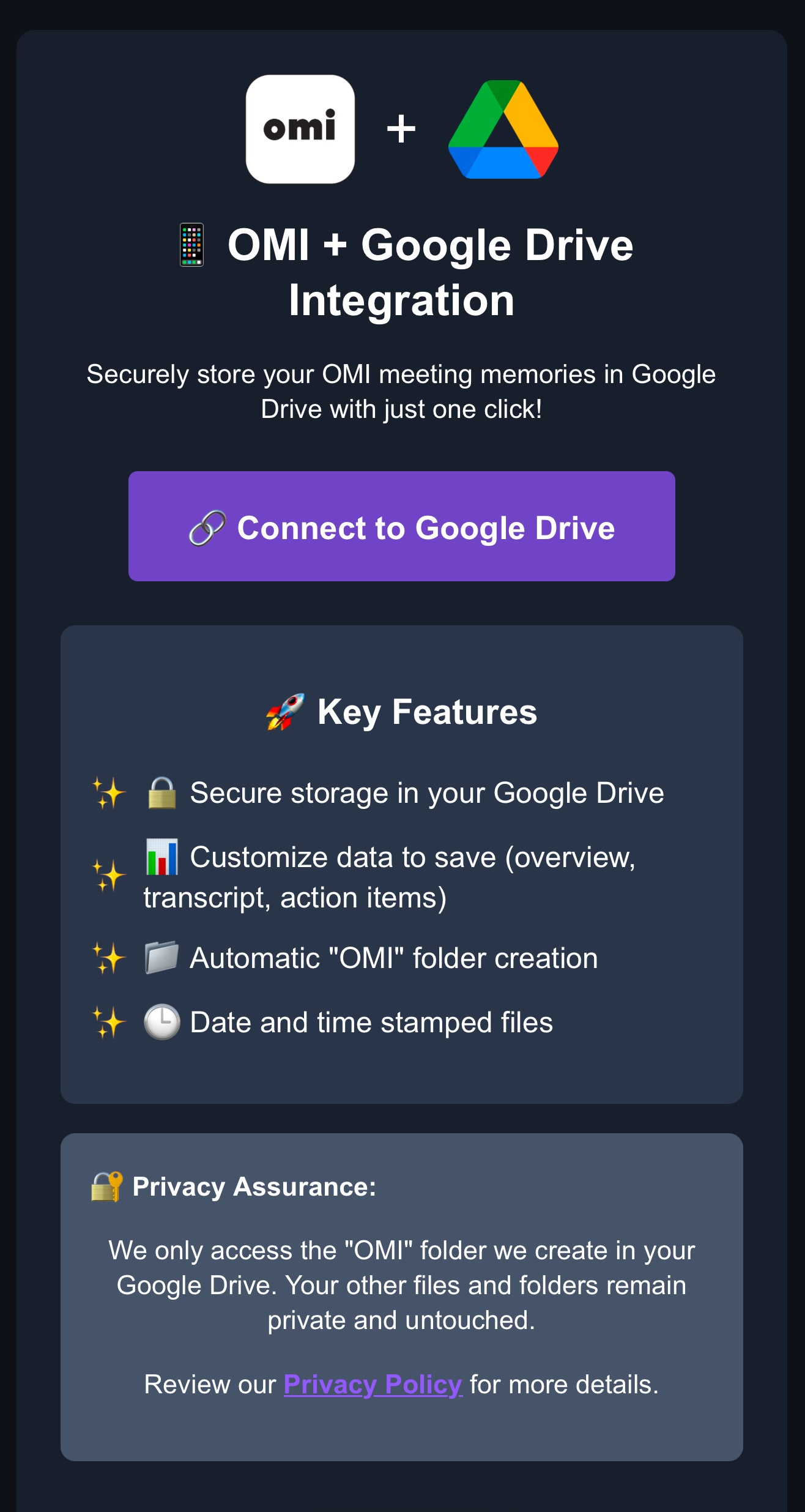
Key Features
Secure Storage
Your meeting memories are safely stored in your personal Google Drive account.
Customizable Content
Choose what to save: overview, transcript, action items, or all of the above.
Automatic Organization
Files are neatly organized in an "OMI" folder with date and time stamps.
Available Content Types
Overview
A concise summary of your meeting.
Transcript
Full text of the meeting conversation.
Action Items
List of tasks and follow-ups from the meeting.
How It Works
Connect
Authorize the app to access your Google Drive account securely through OAuth.
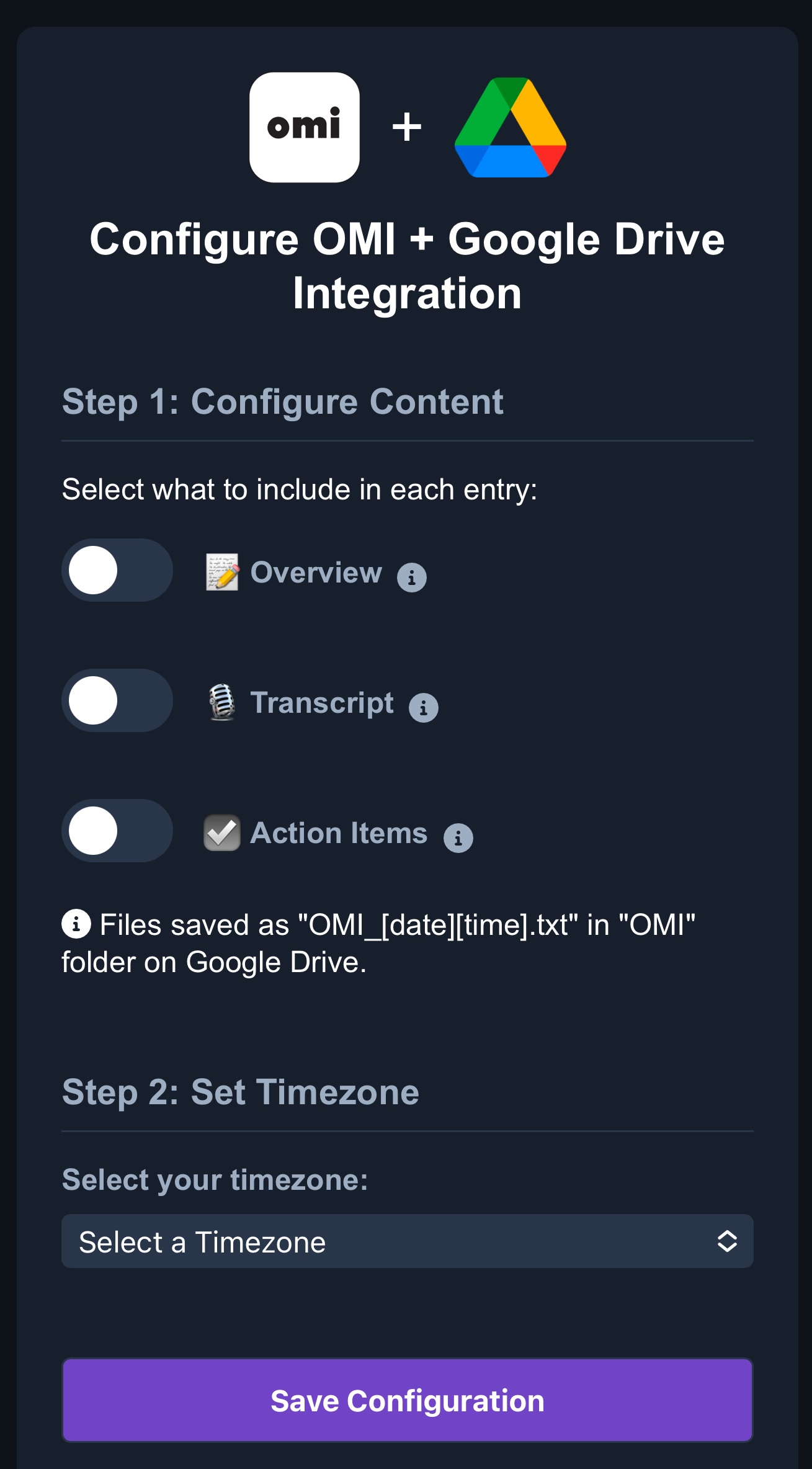
Configure
Customize your settings to choose which meeting data you want to save.
Store
Your meeting memories are automatically saved to your Google Drive after each OMI session.
Configuration Preview
Privacy & Security
🔐 Your data, your control: We only access the "OMI" folder we create in your Google Drive. Your other files and folders remain private and untouched.
🛡️ Secure authentication: We use industry-standard OAuth 2.0 for secure access to your Google Drive.
🔒 Minimal data storage: We only store your Google OAuth token, configuration settings, and a unique user identifier. No personal data or meeting content is stored on our servers.